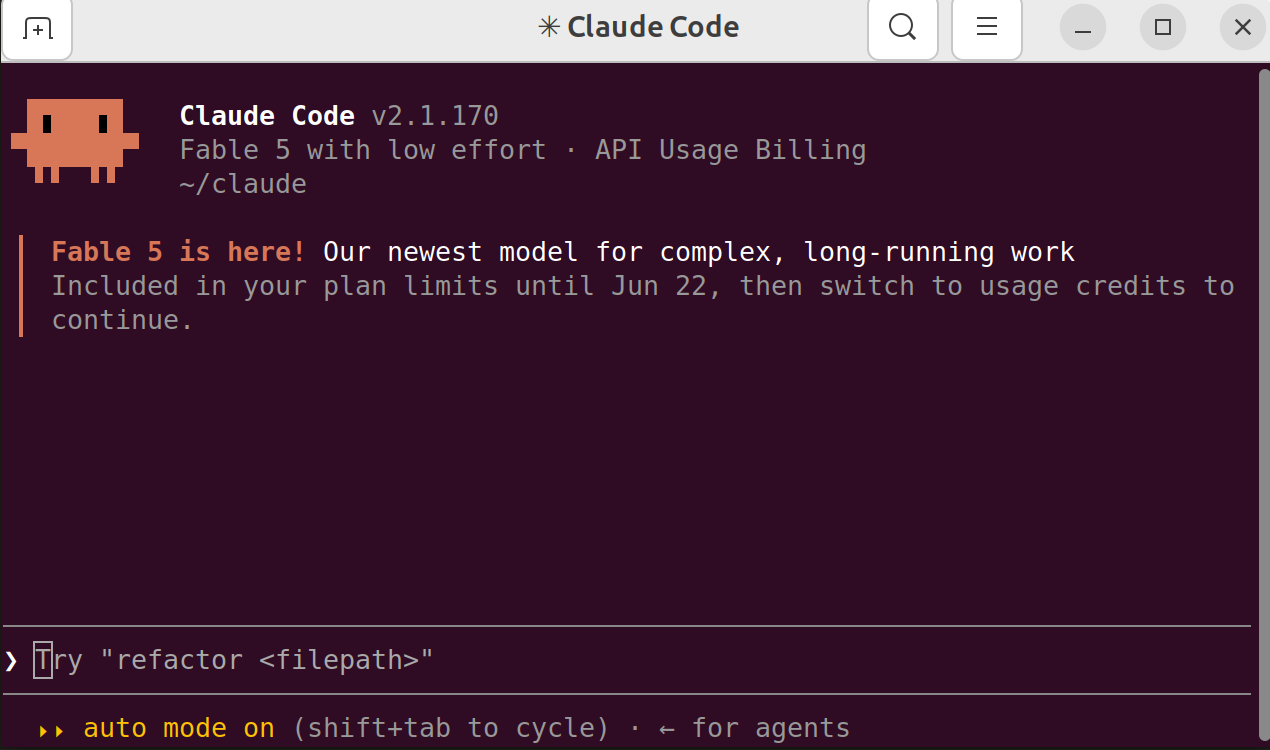
Claude Code can do wonderful things, but by default it asks for permission for everything. This means that it’s hard to step away and let it complete a task on its own; instead, it might get stuck for half an hour waiting for your permission to call a totally harmless command like Bash(ls). There are many ways around this, but this post describes one approach we’ve found useful for Starsim development.
Prerequisites: Claude Code, Codex, or another terminal-based coding agent; a Mac or Linux laptop; access to a virtual machine (optional); and a smartphone.
The magical auto permission mode
Recently (May 2026), Claude Code introduced an auto permission mode. Whereas default asked about everything and dontAsk was extremely limited in what it could do, auto uses its (considerable!) judgement about what’s safe or not. Invoking claude --permission-mode auto will activate this mode (and this setting will persist across sessions, including in e.g. VS Code). This mode doesn’t eliminate permission prompts, but removes ~99% of them, which makes it much more feasible to give Claude a big task and then walk away.
If you don’t want to give Claude auto access to your own computer, a good alternative is to spin up a virtual machine, clone the repo you’re working on, and start a Claude session there. (You don’t need a big VM; even just a “free tier” VM will probably suffice.) But then it’s running on a VM, and that means it’s a pain to access, right? Not necessarily …
Watching from afar
Note: Claude provides a feature called Remote Control that lets you control sessions from the web, but this can be fragile for long-running sessions, and isn’t available on all accounts.
Since our coding agent is running in the terminal, ssh is the tool of choice for linking different devices, including phones. But it’s typically a paint to SSH directly from one device to another, thanks to the (very worthwhile) security measures like firewalls.
While there are again multiple ways to solve this this, a simple (and free, though proprietary) solution is Tailscale. Installing Tailscale on your laptop and phone (and/or VM) effectively creates a personal VPN connecting the devices, letting you interconnect them from anywhere.
The last step of the process is how to keep the Claude session running even if you disconnect from it – which is the problem tmux solves. You can start a tmux session on the VM, then connect to it and control it from both your phone and laptop.
To recap, the steps are:
- Install & sign into Tailscale on each of your devices
- Ensure your “main” device (your laptop or VM) has an SSH server running
- Start a
tmuxsession on the main device, e.g.tmux new -s claude - Start a Claude session inside the
tmuxsession - Give it a task to get started with
- SSH into the main device from your phone or other device
- Connect to the
tmuxsession:tmux attach -t claude
Now you can control the Claude session from your other device.
How we’ve used this in Starsim
For literally years, we’ve put off the task of migrating Covasim into the Starsim framework. But Covasim still has an active user base, so we wanted to prioritize getting the port done.
Porting Covasim is a huge task: ~10,000 lines of code, much of it written 5+ years ago. However, it is also fairly well-defined: the code should use Starsim classes, but produce (statistically) identical results to the current version of Covasim. Plus, we’ve ported HPVsim to Starsim, which has a similar structure to Covasim.
This was the perfect task for this workflow. I started a Claude session on a VM with --permission-mode auto, gave it a detailed 10-step spec for doing the port, and told it to check in after each step for approval. The port took Claude roughly 14 hours (with less than half an hour human time), and I was able to monitor progress and approve steps from my phone.